

How It Works
When a media file is sent or retrieved, CometChat returns a pre-signed URL in the following format:
Pre-signed URLs are returned across all surfaces - SDK responses, REST API, and webhook payloads.
Configuring the TTL
The TTL (Time-to-Live) controls how long a generated pre-signed URL remains valid.
To configure the TTL:
- Go to the CometChat Dashboard.
- Select your app and navigate to Chat & Messaging → Settings.
- Under Pre-Signed URLs, set your desired TTL value.
- Save your changes.
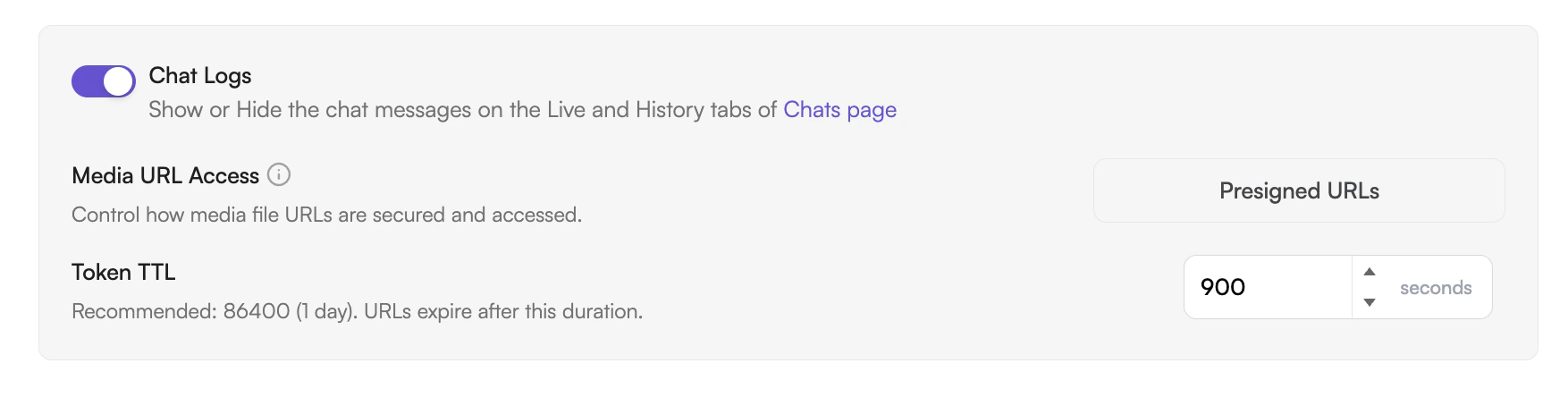
TTL configuration is available on all plans. Changes take effect for all new pre-signed URLs generated after saving; existing URLs retain their original expiry.
Troubleshooting
Media or photo upload fails immediately
If every media upload fails as soon as it starts (the file is rejected before any data transfers, and the UI Kit shows an error on the attachment), check your app’s Media URL Access setting first:- Go to the CometChat Dashboard.
- Select your app and navigate to Chat & Messaging → Settings → General Configuration.
- If Media URL Access is set to Public URLs, change it to Presigned URLs.
- Save your changes and retry the upload.